Frequently asked questions
How to Log In to my existing Account?
If you've used a social account
Click Sign In → Click the social button you used to register (Google / Facebook / LinkedIn / Twitter) → Select your account and Allow/Continue when prompted → You’ll be signed in and taken to your School dashboard.
Click Sign In → Click the social button you used to register (Google / Facebook / LinkedIn / Twitter) → Select your account and Allow/Continue when prompted → You’ll be signed in and taken to your School dashboard.
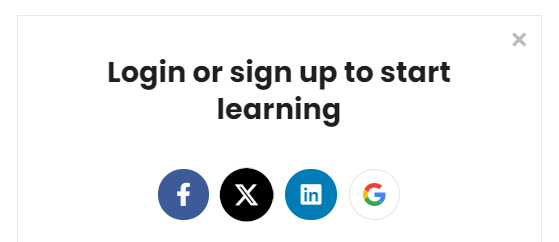
Click Sing In → Enter your registered email → Enter your password → Click Login.
Problems Logging in to your Account?
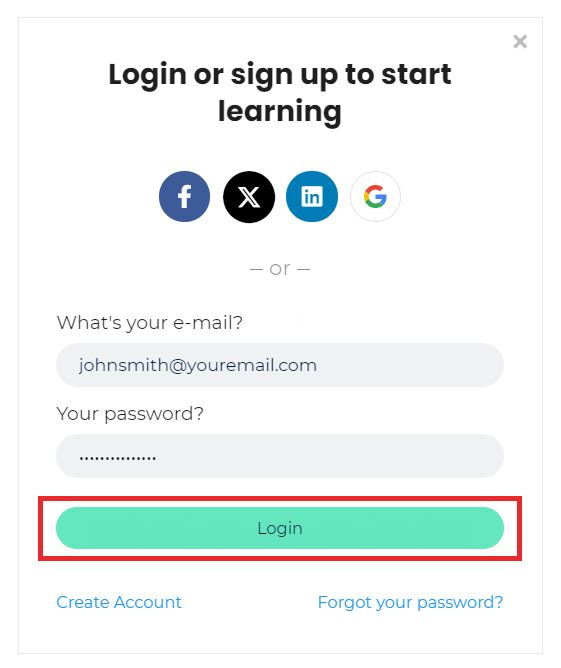
Click Login → Enter your registered email and password → If you see a generic error, check Caps Lock and remove extra spaces → If it still fails, click Forgot your password? (below the Login button)
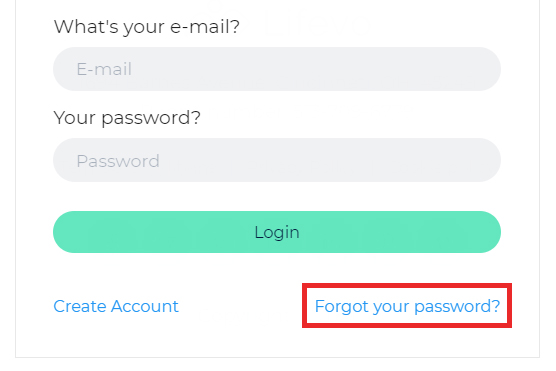
→ Enter your registered email → Click Send reset link → Open the reset email (check Spam/Junk Email if not visible in Inbox) → Click the reset link → Create a new password → Return to Login and sign in with the new credentials.
Can I update my presenter profile or bio on TalkFDA? (Profile Picture, Biography, Locations etc)
From your Dashboard (top menu, left side) click on Preview → Click Me (top menu, right side)
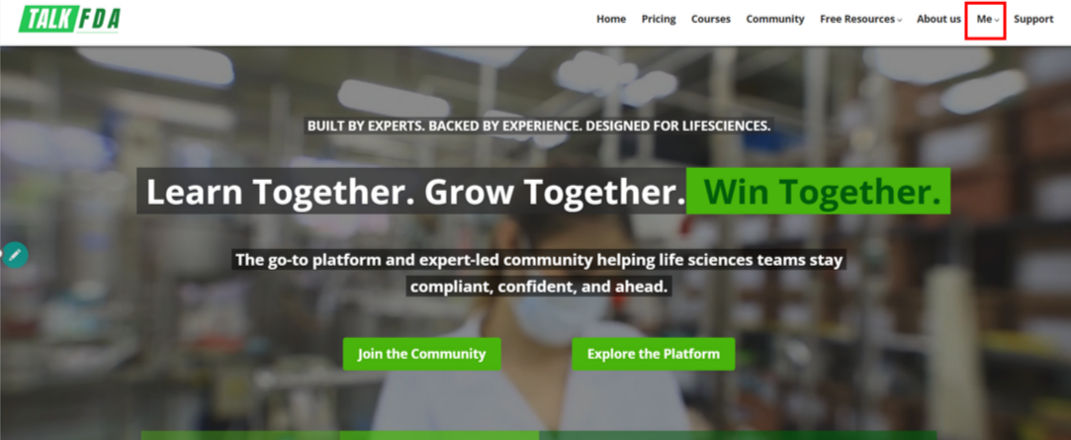
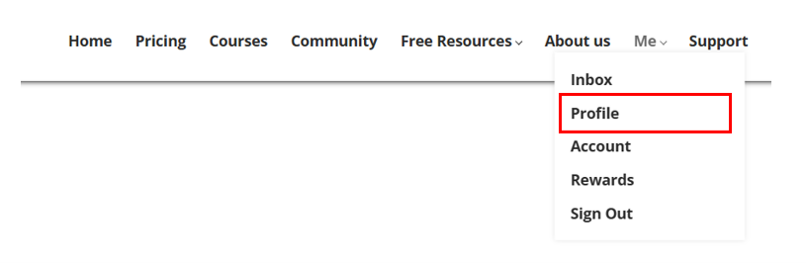
Click Me (top menu, right side) → Profile → Click Edit (under your name) → Update Photo, Bio, or Links → Click Save.
How to send a private inbox message to another Learner?
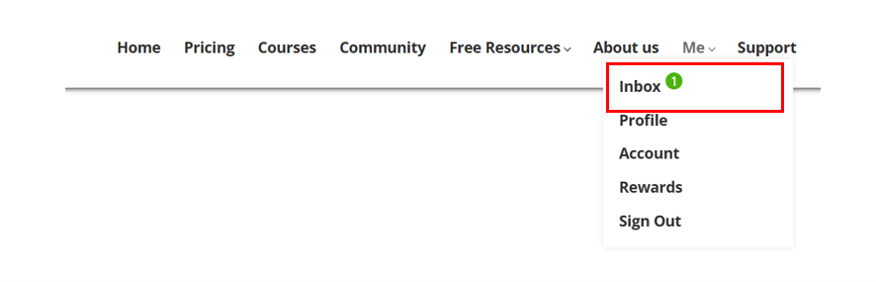
From your Dashboard (top menu, left side) click on Preview → Hover Me (top menu, right side) → Click Inbox
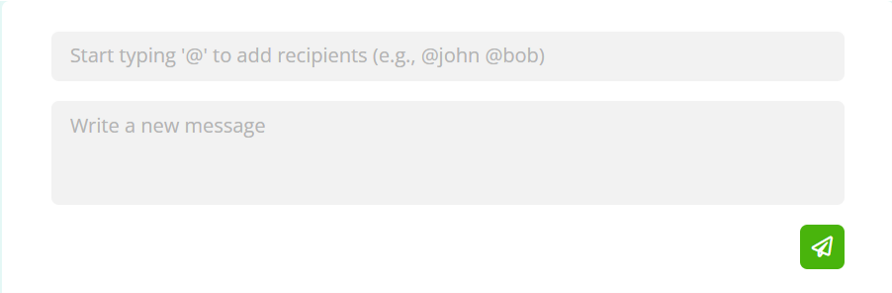
→ Click New message (left side center panel)
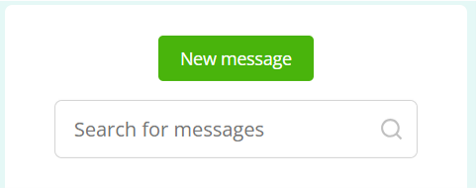
Type @ + learner name and pick them from the suggestions → Write your message in the box → Click Send.
How can I change my password?
Click Login → Click Forgot your password? (below the Login button)
→ Enter your registered email → Click Send reset link
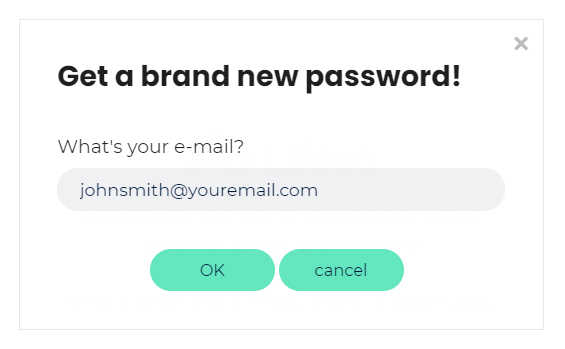
→ Open the reset email (check Spam/Promotions) → Click the reset link → Enter a new password → Click Save → Return to Login and sign in with your new password.
How do I Sign out from the School?
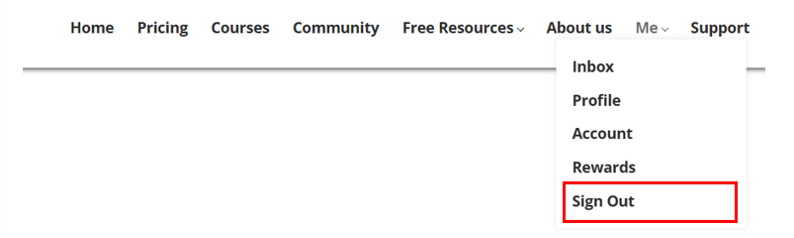
From your Dashboard (top menu, left side) click on Preview → Click Me (top menu, right side) → Click Sign out.
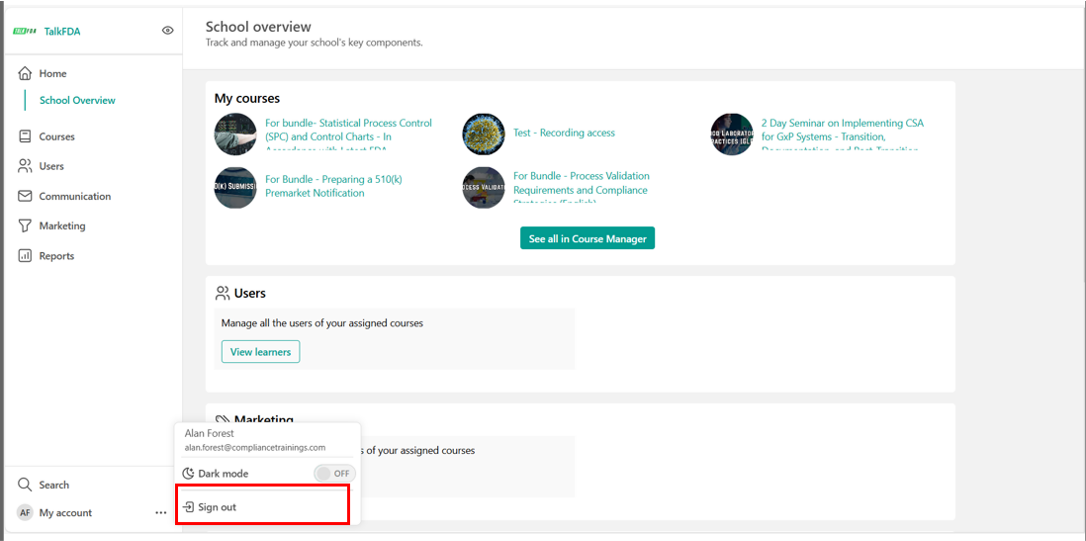
From your Dashboard click Three dots (next to My account (bottom left corner)) → Click Sign out.
How do I see and answer questions in my course?
Go to Communication (left menu) → Community → Click Course Spaces (top tab) → Select your Course (center panel, bold if new/unread) → Open a Discussion Thread → Type in Reply Box (bottom of thread) → Click Share (green button).
What type of data can I see in the reports?
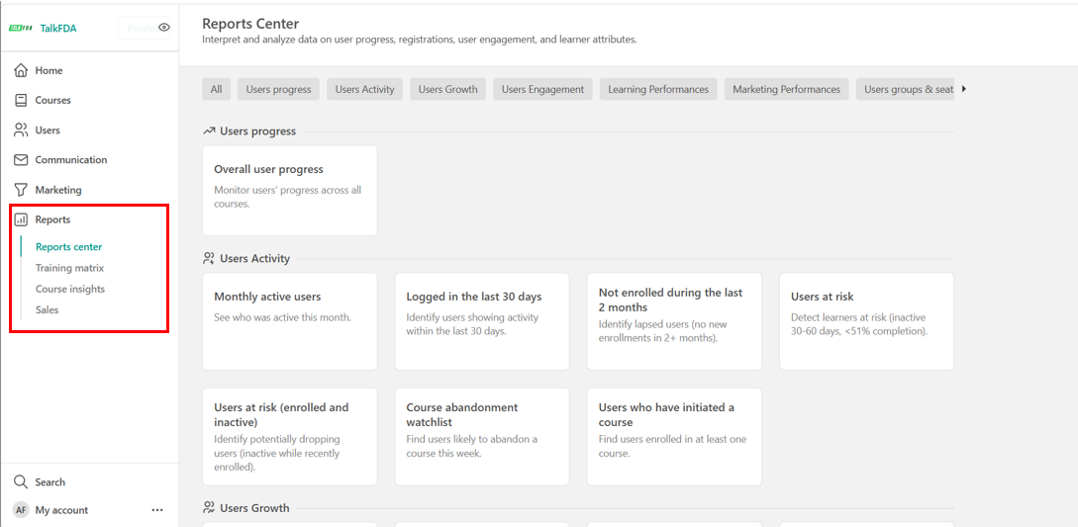
From Reports (left menu), you can view:
-
Reports Center → Overall user progress, monthly active users, logins in last 30 days, inactive users, users at risk, course abandonment watchlist, engagement, growth trends, and group/seat usage.
-
Training Matrix → Learner progress mapped across multiple courses at once.
-
Course Insights → Enrollment numbers, learner progress, completion rates, and assessment results for a specific course.
Can I edit or delete my own answers once posted?
Go to Community → Open the Course Space/Community Space → Select the Thread → Hover over your Answer → Click More Options (⋮) (right side of your answer) → Choose Edit or Delete.
Where can I find community discussions related to my topics?
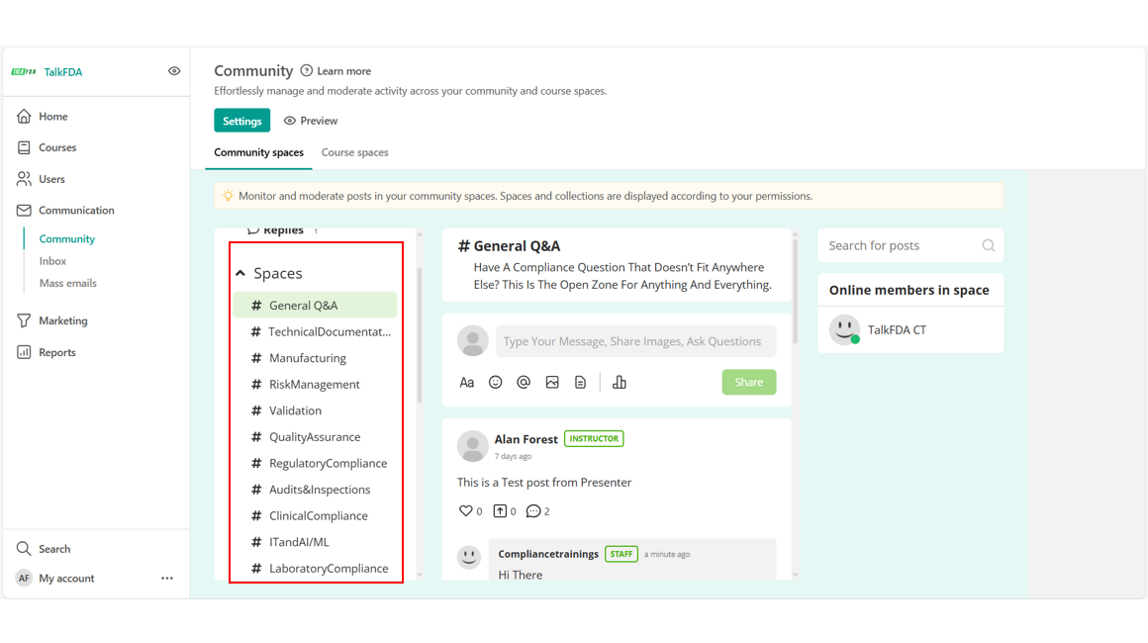
Go to Communication (left menu) → Community →Community Spaces tab → Select a Space (center panel, e.g. Risk Management, Manufacturing, Validation) → Click a Thread to read or reply.
How do I reply to a post in the community?
Scenario 1 – When someone replies to your post
Scenario 2 – When you want to answer another post
Go to Communication (left menu) → Community → Course Spaces tab or Community Spaces tab → Select a Space (e.g. General Q&A, Validation) → Open a Thread/Post (bold if unread) → Type in the Reply Box (bottom) → Click Share (green button).
Can I start a new discussion thread in a Community Space?
Go to Communication (left menu) → Community → Community Spaces tab → Select a Space (center panel) → Type your message in the Post Box (“Type Your Message, Share Images, Ask Questions”) → Use the toolbar to format text, add emoji, mention with @, attach images, files, or start a poll → Click Share (green button).
Can I start a new discussion thread in a Course Space?
Go to Communication (left menu) → Community → Course Spaces tab → Select your Course (center panel) → Type your message in the Post Box (“Type Your Message, Share Images, Ask Questions”) → Use the toolbar to format text, add emoji, mention with @, attach images, files, or start a poll → Click Share (green button).
(Screen recording optional)
(Screen recording optional)
How do I get notified when someone tags me in the community?
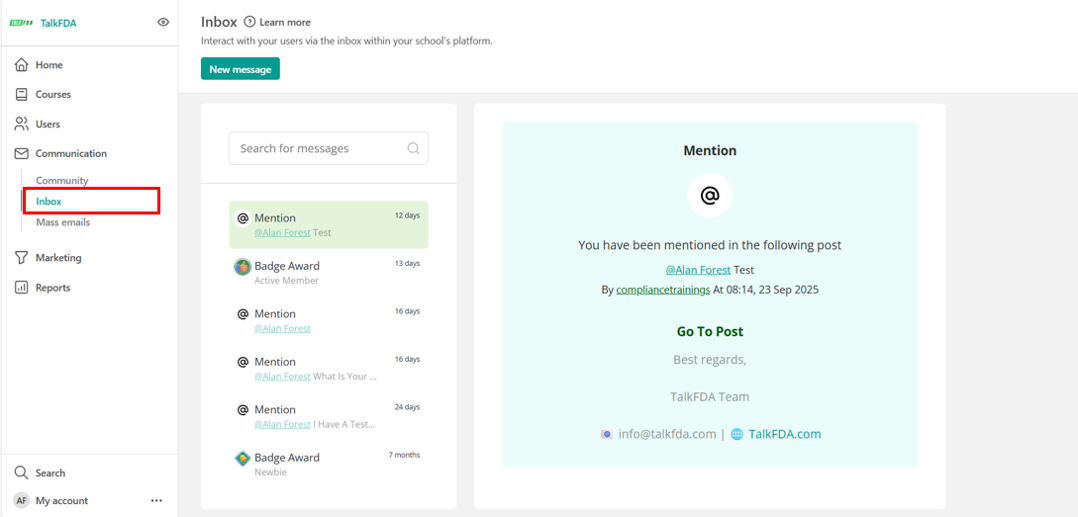
Communication → Inbox (left menu) → See all new messages, mentions, and activity
Alternatively:
Go to Communication (left menu) → Community → Community Spaces tab → (center panel) See all Course Discussions, Mentions, and Replies
Go to Communication (left menu) → Community → Community Spaces tab → (center panel) See all Course Discussions, Mentions, and Replies
Will learners get notified when I answer their question?
When you Post an Answer, learners automatically get a notification via email and also in their Talk FDA Inbox.
What Browsers are Supported?
We support the latest versions of all well-known browsers. For optimal studying experience we recommend using Mozilla Firefox or Google Chrome.
Copyright © 2026